Save Gmail Emails as PDF in Bulk — in Chrome or Edge

Turn your messy Gmail Inbox into clean, print-ready PDF documents. Easily batch download and export your Gmail emails as PDFs, or merge them into a single file to bulk print effortlessly — with all attachments included as zip. Just filter by label or search to capture exactly what you need for audits or backups. The extension runs 100% locally, so your sensitive data never leaves your browser.

4.9 · 10,000+ users · Chrome Web Store

Free to start · Chrome Web Store & Microsoft Edge Add‑ons

  • Made on your device

    PDFs are generated in the browser; nothing is uploaded.

  • Whole folders at once

    Select a label, a sender or a search and export it together.

  • Merge up to 50

    One PDF for a case, a month or a project.

  • Attachments kept

    Zipped beside each PDF, original files intact.

Everything you need to save Gmail to PDF

Batch export, merged printing, filename templates, and page setup — all processed locally in your browser.

Batch save Gmail to PDF in one click
Select hundreds of emails, an entire label, a sender, or a search result, and export them all to PDF at once.
Merge & print in one job
Turn a whole selection into one PDF, then save it or send it straight to the printer — instead of opening and printing emails one at a time.
Custom filenames
Combine sender, subject, and date into a template — every PDF comes out named like 2026-01-15_Acme_Invoice.pdf, sorted and ready to file.
Orientation & paper size
Portrait or landscape; A3, A4, A5, B4, B5, Letter, Legal or Tabloid. Set it once and it applies to every export.
Keeps formatting & attachments
Layout, fonts, and inline images come through exactly as Gmail shows them. Attachments can be saved alongside each PDF.
100% local & private
Every PDF is generated in your browser. Nothing is uploaded — we never see a single email.
Export settings4 emails selected
Paper size
Orientation
Merge into one PDF
Filename

A4 · 210 × 297 mm

  • 2026-03-02_Acme-Billing_Invoice-4821-March.pdf
  • 2026-02-27_Northwind-Legal_Signed-agreement-attached.pdf
  • 2026-02-19_Lena-Ortiz_Re-Q2-budget-approval.pdf

Generated in your browser · 0 bytes uploaded

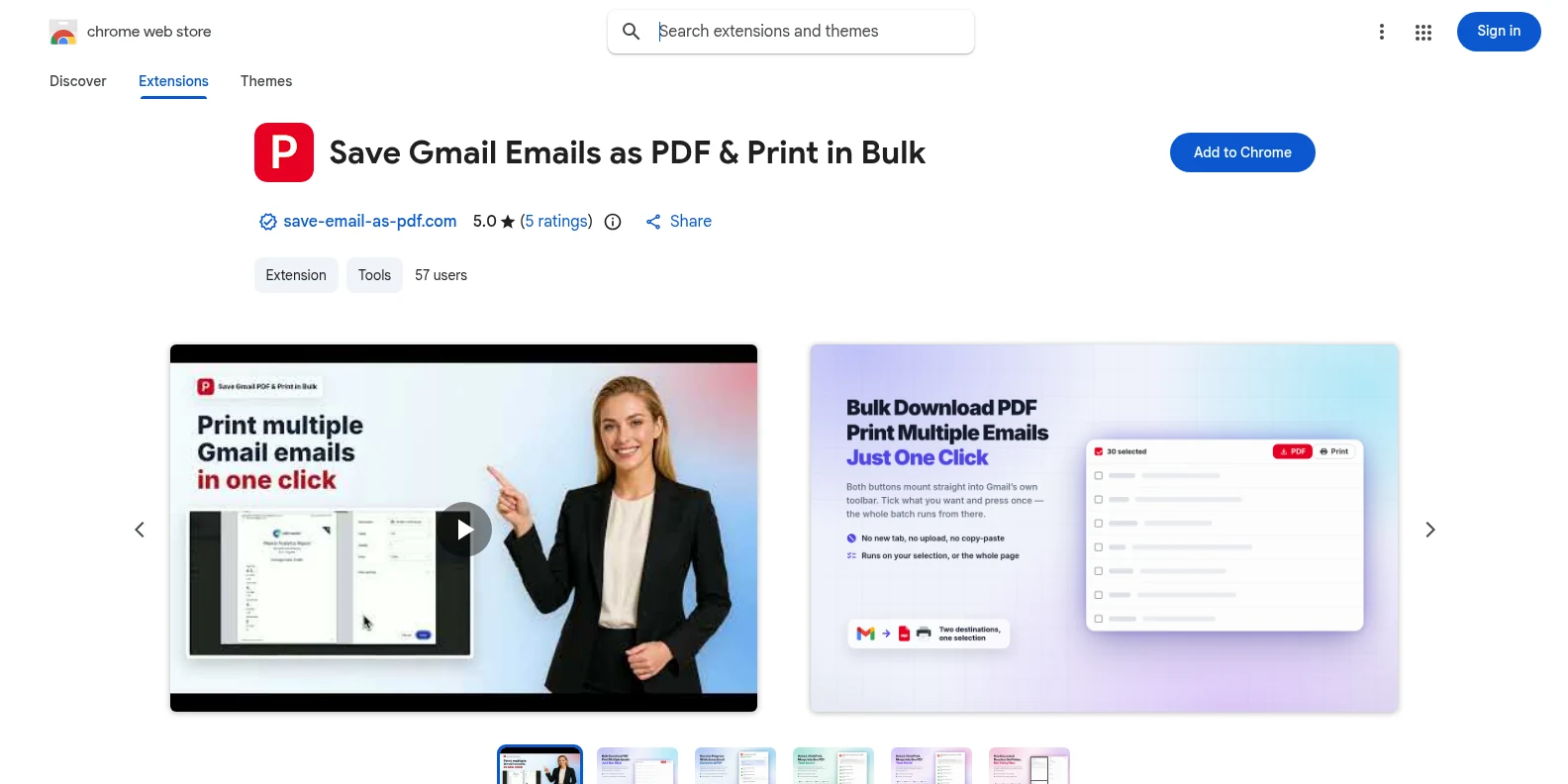
Full product demo: how to save Gmail to PDF and print in bulk.

How to save Gmail to PDF in three simple steps — in Chrome or Edge

No setup, no uploads, nothing to learn — just save Gmail to PDF straight from your inbox.

  1. Install it free from the Chrome Web Store or from Microsoft Edge Add‑ons — whichever browser you use. No sign-up screen, no setup wizard: a PDF icon shows up in Gmail's own toolbar the next time you open your inbox.

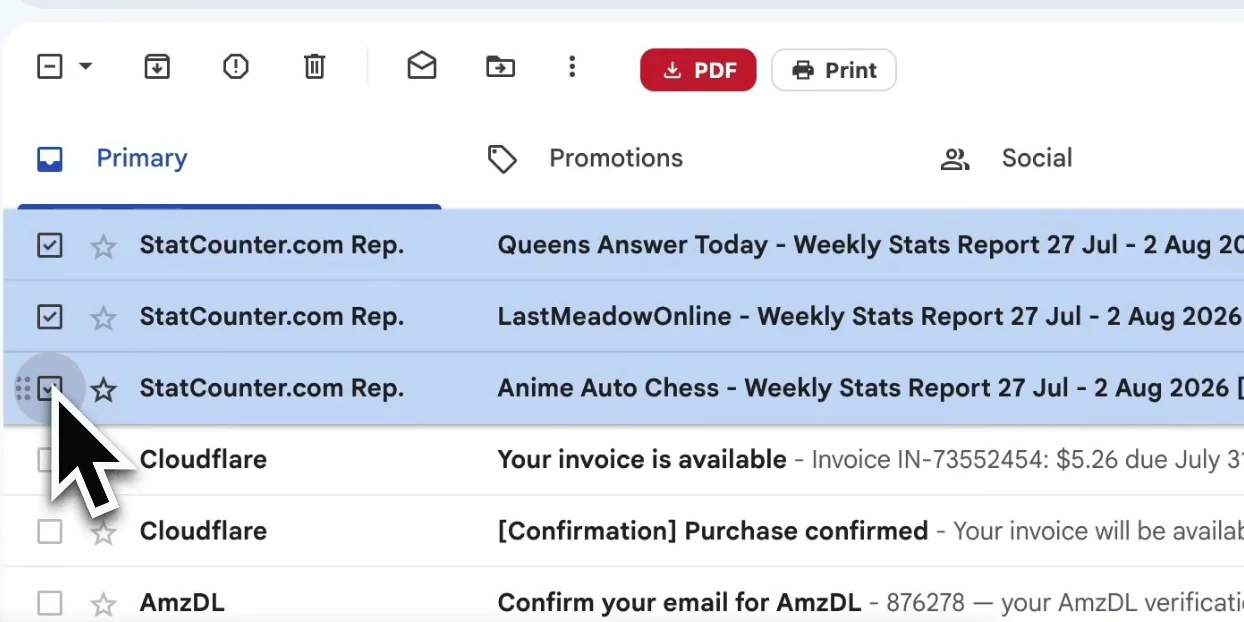
  2. Tick the emails you want, or select a whole label, sender, or search result. The toolbar's PDF and Print buttons switch on the moment you check the first box.

  3. Set the filename and paper size, then click PDF to download every email as its own file — or click Print to merge the whole selection into one document and send it straight to your printer.

Works in Chrome and Edge

One extension, two official stores. Use the browser you already have open — Gmail looks the same in both, and so does the PDF.

Chrome Web Store
Microsoft Edge Add‑ons

Same toolbar, same PDF

Install once per browser
Chrome installs it from the Chrome Web Store, Edge from Microsoft Edge Add‑ons — each browser from its own official store.
Identical features
Bulk export, merge into one PDF, print, and attachments download the same way in both browsers.
Still 100% local
In Chrome or Edge, every PDF is generated on your device. Nothing passes through our servers.

Secure batch PDF exports and printing, built for teams across industries

From a single client thread to a full year of records, professionals rely on Save Gmail Emails as PDF in Bulk to turn Gmail emails into clean, shareable PDFs — ready to save or print directly for a case file, an audit, or a court. Every export keeps the original formatting, timestamps, and attachments, so what lands in the folder looks exactly like what showed up in the inbox.

Trusted by professionals who archive email as PDF files

Lawyers, accountants, HR teams, and freelancers rely on it to save client emails, receipts, and contracts as PDF files.

4.9 · 10,000+ users · Chrome Web Store

  • “I keep a PDF of every client email in our case files, and it used to mean printing them one at a time from Gmail — twenty minutes for one thread if there were attachments. Now I select the whole conversation, click once, and it's in the folder before I've finished my coffee.”
    Daniel BrooksParalegal
  • “At tax time I used to lose a full afternoon opening receipts one by one and printing each to PDF. Now I just grab the whole 'Receipts' label, export it in one batch, and hand the accountant a folder instead of a login.”
    Mei TanakaAccountant
  • “Employment law here means keeping candidate and onboarding emails on file for years, not months. Batch export with consistent filenames keeps our HR folders audit-ready without someone renaming forty PDFs by hand every quarter.”
    Sofia AlvarezHR Manager
  • “Every client thread goes into the project folder as a PDF the day the project closes. The filename template does the renaming for me, so six months later I can actually find the approval email instead of scrolling through Gmail search.”
    Tom WrightFreelance Designer
  • “My student account had a shutoff date after graduation, so I saved every email from my advisor and professors before it hit. It ran right inside Gmail and took maybe ten minutes for four years of correspondence, no uploading required.”
    Priya NairGraduate Student
  • “Order confirmations, supplier emails, signed contracts — I run a batch export every month so the shop has a paper trail that doesn't live only in Gmail's search bar. It all happens in the browser, so none of it passes through a server I don't control.”
    Marcus HaleSmall Business Owner

Simple, transparent pricing

No surprises. Start with 20 free Gmail to PDF conversions, then go unlimited whenever you're ready — every future update included, for life.

Free

$0free trial

  • 20 free Gmail to PDF conversions
  • Lifetime upgrades — every future feature

Monthly

$4.99/ month

  • Unlimited Gmail to PDF conversions
  • Lifetime upgrades — every future feature
  • Billed monthly
  • Priority ticket support
  • Cancel anytime

Yearly

Best value

$49.9/ year

Just $4.16/mo · 2 months free

  • Unlimited Gmail to PDF conversions
  • Lifetime upgrades — every future feature
  • Billed yearly · save 17%
  • Priority ticket support
  • Cancel anytime

7-day money-back guarantee · Cancel anytime

Frequently asked questions

Everything you need to know before you install.

Still have a question? Contact support

Does it work on Microsoft Edge?

Yes. The extension installs and works in both Chrome and Edge with the same features. Edge users install it from Microsoft Edge Add‑ons; Chrome users install it from the Chrome Web Store.

Do I need to install it separately in Chrome and Edge?

Yes — each browser installs extensions from its own official store, so install it once in Chrome and once in Edge if you use both. After that it works exactly the same way in each.

Is Save Gmail Emails as PDF in Bulk free?

Yes. The free trial includes every feature and 20 Gmail to PDF conversions. After that, Pro is $4.99/month or $49.9/year for unlimited conversions. Cancel anytime.

Do my emails stay private?

Yes. PDFs are generated locally in your browser. Your emails and attachments are never uploaded to our servers — or anyone else's.

Does it work with Gmail?

Yes. It's built for Gmail and works with both personal and Google Workspace accounts. It is an independent tool, not affiliated with or endorsed by Google or Gmail.

Can I print multiple Gmail emails at once?

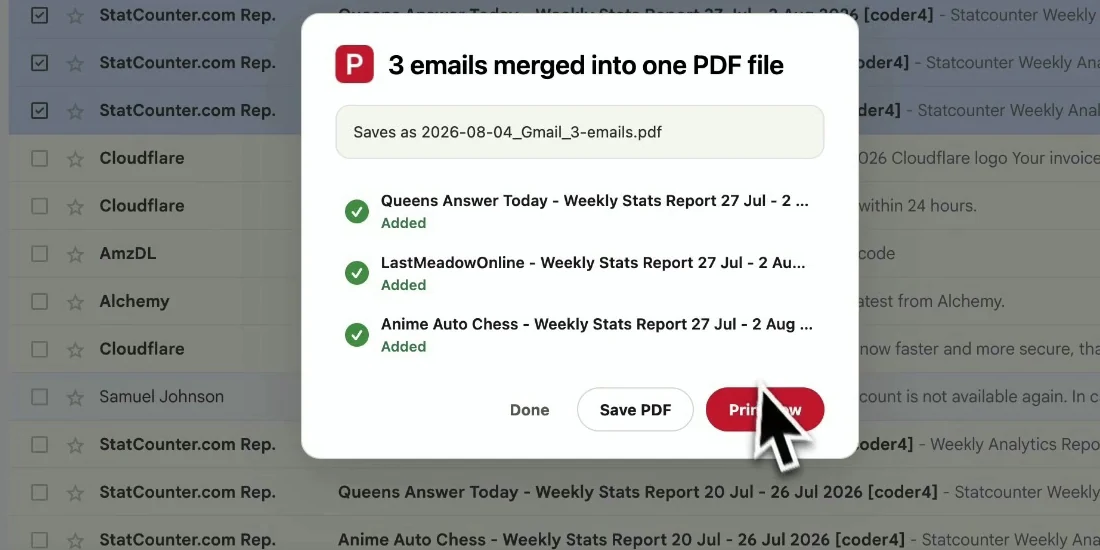
Yes. Select the emails, click Print, and the extension merges them into a single PDF — one email per page — that you can save or send straight to your printer. Gmail itself can only print one conversation at a time.

How do I merge several Gmail emails into one PDF and download it?

Select the emails, click Print in the Gmail toolbar, and the extension merges the selection into a single PDF — one email per page. A short summary shows which emails went in, then click Save PDF to download the merged file straight to your computer. Print now sits right next to it if you'd rather send the same file to a printer instead.

Can I customize the file names?

Yes. Build a template from sender, subject, and date — for example 2026-01-15_Acme_Invoice.pdf. Available on every plan, including the free trial.

Can I change the page orientation and size?

Yes. Portrait or landscape, and eight paper sizes — A3, A4, A5, B4, B5, Letter, Legal and Tabloid — on every plan.

What if Pro isn't right for me?

Cancel anytime. Every charge is covered by a 7-day money-back guarantee — email us within 7 days of a payment for a full refund.

How do I get an invoice for my payment?

Sign in on our website and go to Settings → Payments. Click Invoice next to the payment, confirm your billing details, and the PDF downloads. Only your full name is required — company name, billing address, VAT / tax ID and email are optional and appear only if you fill them in. Your details are saved for next time; change them anytime under Settings → Billing and download again for an updated invoice. For Stripe's own payment receipt, use the Stripe receipt link under the button.

Start saving your Gmail emails as PDF today

Add the free extension and export or print your first batch in under a minute — right inside Gmail, all on your device.

Free to start · Chrome Web Store & Microsoft Edge Add‑ons